
If you and your company were already using the first generation of Introspect, you can go directly continue at 3. How to get started – Existing Users.
1. If you and your company use IntrospectTM the first time, this is how you get started:
- A Power User of your company will create an account by signing up to Introspect
- The Power User will be administrator in the Organization Management in Introspect and can invite more users to your organization
- Instrument(s) need to be registered with the IoT Client. Note: local Windows administrator rights are required for the setup.
- Prerequisites for the installation:
- Internet connection on the PC of the instrument (only certain ports need to be whitelisted, see Introspect installation and instrument registration
- IoT Client needs to be installed
- After the instrument(s) are registered to Introspect, they have to be assigned to a structure in Organization Management, at minimum one layer must be assigned with instruments and users.
2. Signing up for a Tecan Account
If you are an administrator of the organization, you will signup for a new organization as described below. If your company already has an administrator, your new account shall be created by the administrator of your organization. As described in 4. Organisation Management.
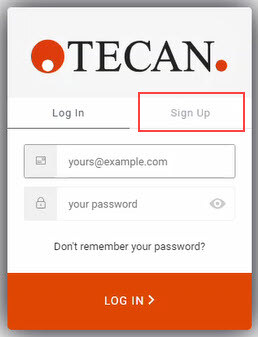
Go to https://digital.tecan.com to signup for a new account.
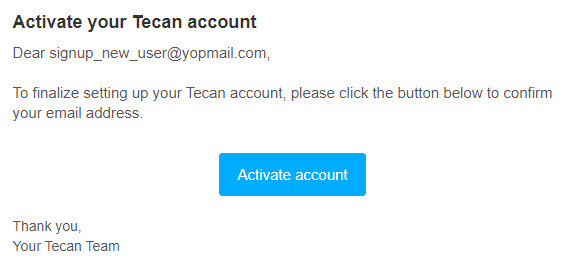
Following that form you will get an activation email to confirm your email-address. After clicking on the activation link in the email, the account will be created automatically.
After that you can login to Introspect here: https://digital.tecan.com
Go to Signup and enter your email-address and a new password, your first name and last name and check the box to agree to the terms of service and continue with signup.

Activate your account by clicking the button in the email.
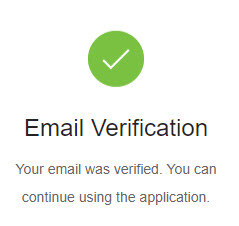
A new page should show that the email verification was successful and you can return to the application.
Continue with assignment of instruments and users at 4. Organization Management
3. How to get started - Existing Users
As an existing user you can continue using Introspect, the user accounts were migrated from the first generation of Introspect and most of the instruments which were connected with the latest IoT Client were migrated to the new dashboard.
There are a few steps required to be setup and then you are ready to go:
- Existing Power Users of the old Introspect had to set a new password. If you missed that, please go to the login screen and select “Don’t remember your password” to be able to set a new password.
- Important: The management of users and instruments is done in Organization Management by an administrator. The structure of the organization must be configured before seeing any data. At minimum, one layer must be assigned with instruments and users.
For the new dashboard, the latest IoT Client is required. You might need to update the IoT Client, to be able to migrate the instruments to the new dashboard.
Please find here the information for the installation: Installation and instrument registration
4. Organization Management
Navigate to the Organization Management page via the main menu (the nine dots) at the top from the page:
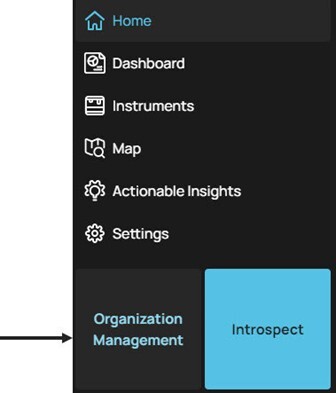
Select Organization Management and this will open a separate page where you will find the main functions in the navigation pane on the left.
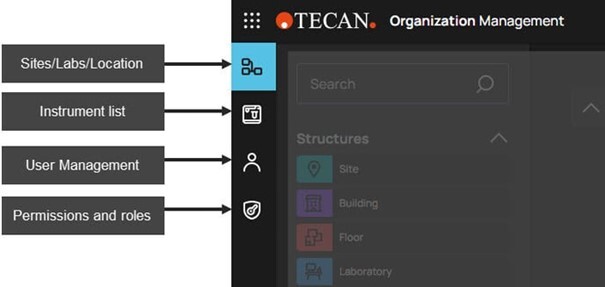
Purpose: This is the user and instrument management for Introspect. And here you can setup multiple sites with buildings as well as create a simple lab.
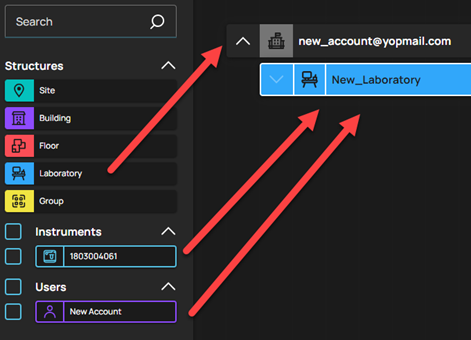
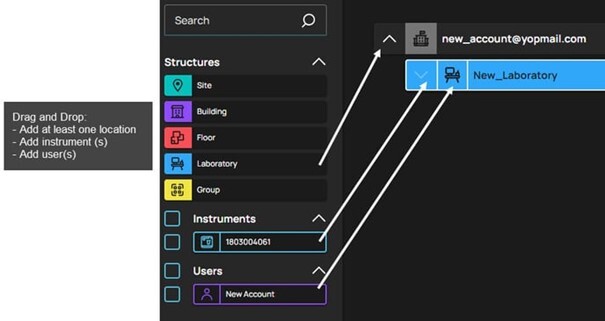
To be able to manage access to instrument data in Introspect, at minimum one structure layer must be assigned with instruments and users, in the example there is a laboratory and the instruments and users are added to that.
Several structure layers can be added to the organization by drag&drop. Instruments and users can then be added to the configured layers by drag&drop.
On the left side the menu shows the different structure layer that can be added.
- Different structures you can use
- Site
- Building
- Floor
- Laboratory
- Group
- The list of all instruments registered to your organization
- The list of all users in your organization
The different layers can be added to the organization by drag&drop. Instruments and users can then be added to the configured layers by drag&drop.
Note: Add at least one laboratory to the organization and move instruments and users into the lab to provide them access.
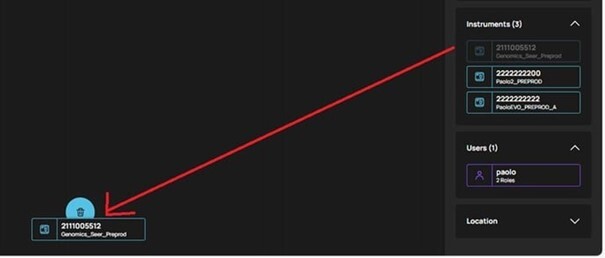
To remove instruments and/or users from a laboratory or other structure layer, select them on the right side from the list and drag them to the recycle bin icon at the bottom.
After that they will appear again on the left side of the screen and are available to be moved into another structure layer again.
Further help
For further help, please refer to our Helpdesk.
Link to Tecan Product Page
403020-002