
Each Spark® and Spark® Cyto is registered on the Tecan Licensing Server with its serial number and the license types that were sold in combination with the corresponding instrument.
The following license type is available for Spark and Spark Cyto:
|
Article Number |
Description |
|
30289693 |
Software Evaluation |
The license file is linked to the serial number of a specific instrument.
Activation of the license is possible for an unlimited number of PCs and laptops if they are connected to the same registered instrument with a valid license.
It is possible to download the license file multiple times. When replacing the instrument computer, create a new license request and download the license file for the new computer.
How to get a valid license
1. Start SparkControl™ and verify that you are connected to the instrument and are not in simulation mode.

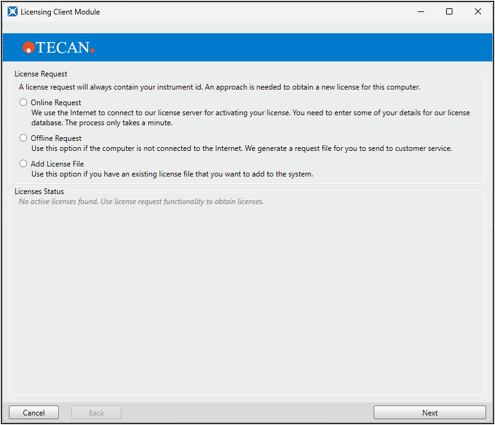
2. Click “Help” and then “Activate License”. The Licensing Client Module appears.
Option A) Instrument computer is online and has an internet connection
3. Select “Online Request” and click the “Next” button.
4. The “Serial Number” field is prefilled already.
5. Enter your valid data (customer information) into the form. Fields marked with an asterisk are mandatory.
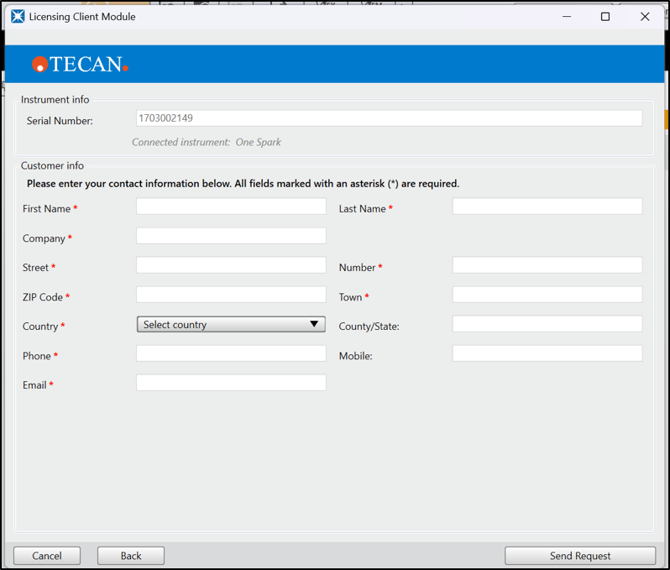
6. Click the “Send Request” button.
7. A message will appear confirming successful activation:
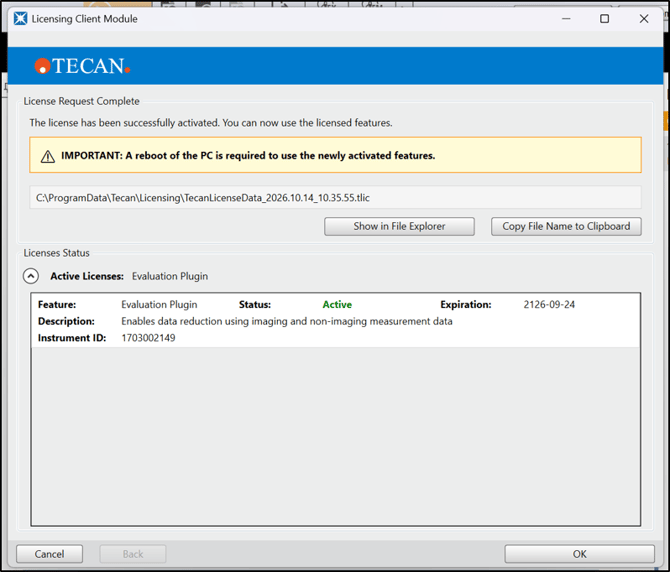
8. Click “OK” and restart SparkControl. You can now work with the new, valid license.
Option B) Instrument computer is offline and has no internet connection
(File Mode: A request file will be generated and this file will be uploaded to the webpage.)
3. Select “Offline Request” and click the “Next” button.
4. The Serial Number of the connected instrument is shown (grey color, no manual editing possible).
5. Click “Send Request” to generate the Offline License Request file including your instrument ID (serial number).
6. The license request file has been created.
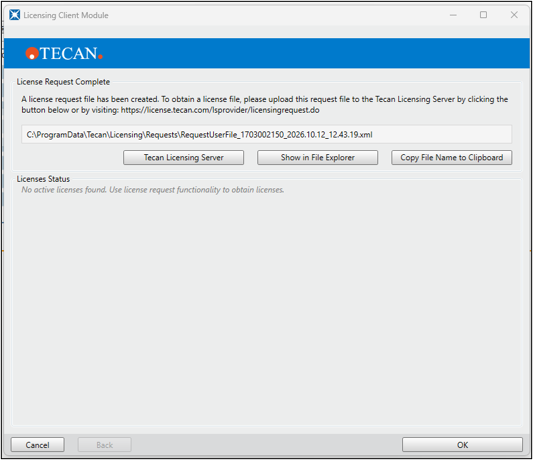
The .xml file is automatically saved in your file directory and can be found here: C:\ProgramData\Tecan\Licensing\Requests
You can choose to open the web browser to the Tecan Licensing Server directly (only possible if computer is online), show the file in file explorer and copy file name to clipboard:
File name format: C:\ProgramData\Tecan\Licensing\Requests\RequestUserFile_SERIALNUMBER_year.month.day_hh.mm.ss.xml
7. Copy the license request file to a USB storage device.
8. Go to another computer that has internet access to complete the next steps.
9. Open your web browser and visit the Tecan Licensing Server, URL: https://license.tecan.com/lsprovider/licensingrequest.do
10. Insert all mandatory information: This information will be linked to your instrument’s serial number and software license. Fields marked with an asterisk are mandatory.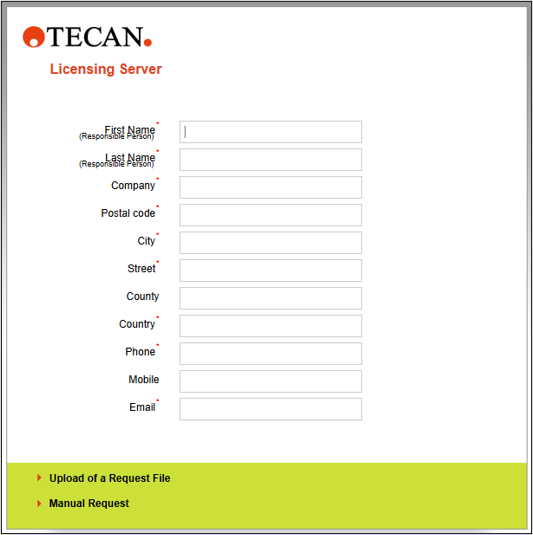
11. Upload of a Request File: Upload and submit your license request file.
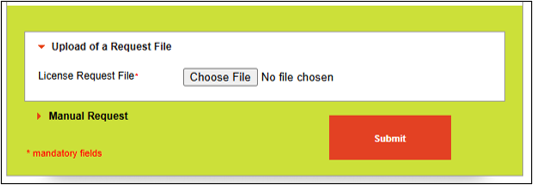
Manual Request:
Click Manual Request to manually enter your request key that can be found in the license request file.
12. A license data file specific for your instrument will be available for download. Copy this file to a USB storage device.
13. Return to the instrument computer with the copy of your license file.
14. Open the Licensing Client Module and select the “Add License File” option and click “Next” button.
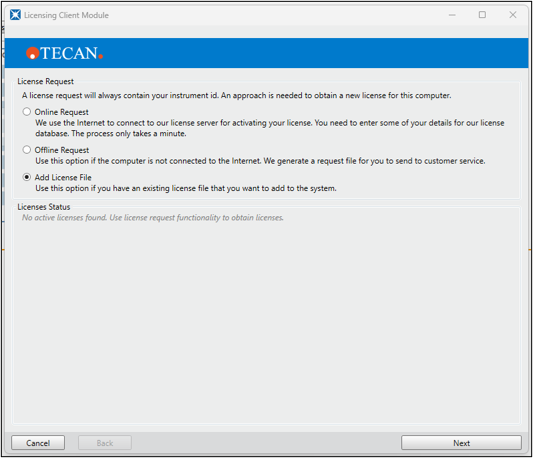
15. Click the “Browse…” button and select the downloaded license file, click the “Open” button and finally “Add License File” button.
16. Restart the SparkControl application. You can now work with the new, valid license.
Note: After license activation, the current license type is displayed under Help -> Activate License: Licenses Status (choose to pop-out this segment for full view).
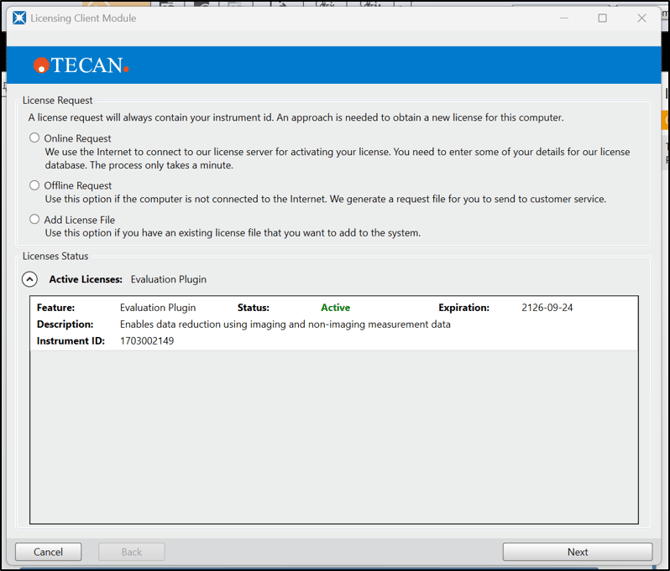
Next steps if further support is needed:
- Note your serial number. Where do I find my serial number?
- Create a service request.
Link to Tecan Product Page:
401821-025