
This article summarizes how to manage instruments in Introspect
The instrument page shows a list of the registered instruments of your organization.
It is accessible by clicking on the button on the left vertical menu.
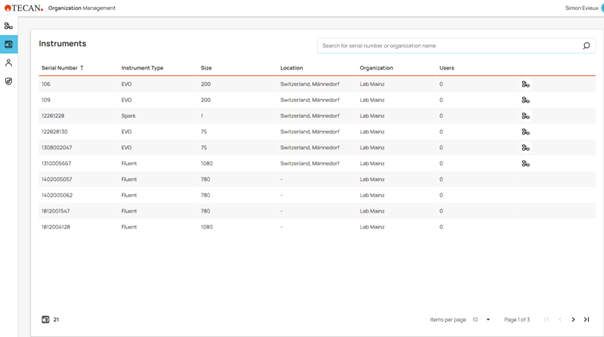
In the list of instruments you can find the overview with all registered instruments.
You can search for a specific instrument through the serial number.
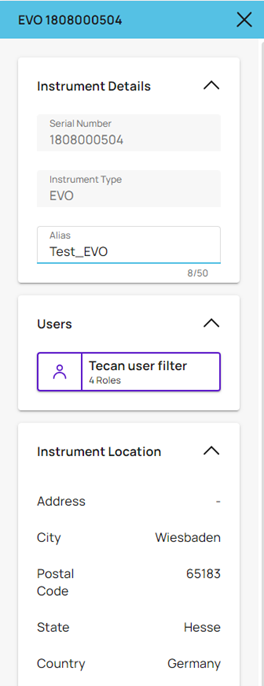
Clicking on an instrument shows details on the right: Serial Number, Instrument Type, Alias, the assigned users and the location (if a location is set for the structure layer where the instrument is assigned)
The Alias can be changed in the details of the instrument on the right side and will be reflected on the instrument accordingly.
The organization icon in the very right column is a link to the Organization structure and opens the structure directly to see where this instrument is assigned.
Managing organization structure
1. Creating/modifying the structure
When first accessing this view only the name of the Organization is visible at the top of the view. The name of the Organization can be changed in the details to the right side.
Creating the organization structure is done through drag and dropping the different structures into the organization.
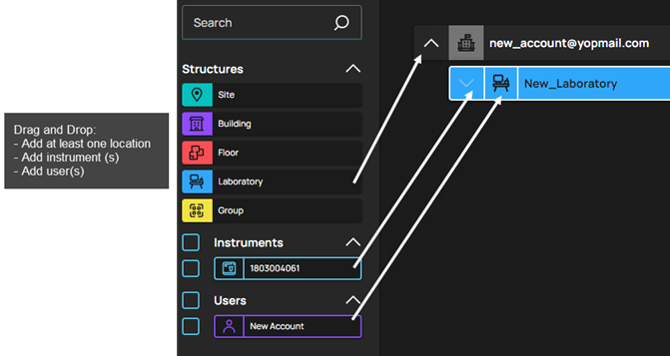
Once the structure is created, it can be updated by drag and dropping the different layers.
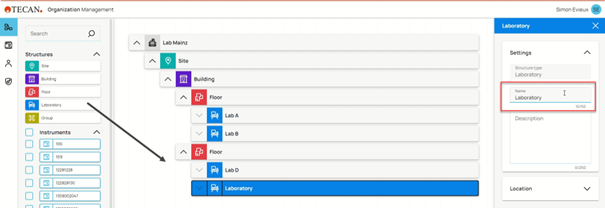
Layers can be renamed.
Location can be set for every layer. If a layer does not have its own location, it inherits its parent location (even though this is not visible in the details).
When dragging a layer, a recycle bin appears at the bottom of the screen. Any layer can be deleted by moving it to the recycle bin.
2. Assigning instruments to the structure
In order that your instruments are visible in Introspect, they must be assigned to an existing structure in your organization
One instrument can be placed in one structure layer only.
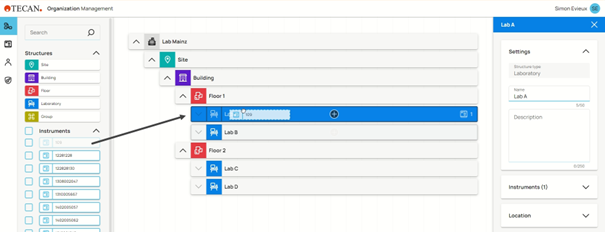
3. Unassigning instruments from the structure
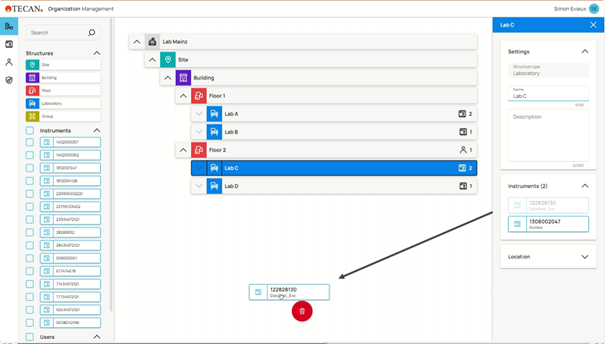
In order to remove an instrument from a layer in the structure, you would move the instrument to the recycle bin icon as shown below.
4. Assign users to structure
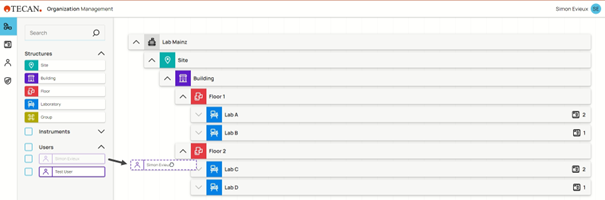
In order that your users can see the instruments in Introspect, you need to give them access. This is done through assigning users to the different layers of your structure.
A user will see the instruments assigned to the layers they are assigned to as well as the ones assigned to the child layers.
Users are displayed below the list of instruments on the left of the screen.
They can be assigned to layers in the structure exactly as the instruments.
5. Unassign users from structure
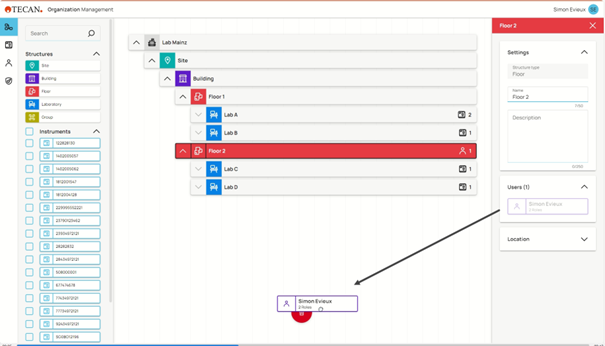
In order to unassign a user from a layer in the structure, you would do exactly as you do for unassigning an instrument.
Further help
For further help, please refer to our Helpdesk.
Link to Tecan Product Page
403020-005