
This article describes how to manage users in Introspect
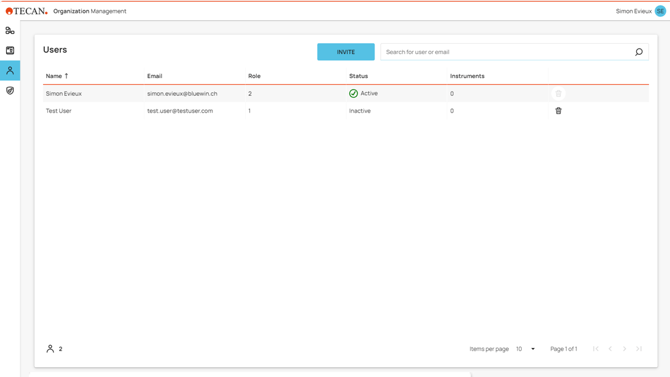
The user management shows a list of all created users in your organization. It shows the details on how many roles they have and how many instruments they have access to.
After users were created they need to be assigned to instruments via moving them into Structures like laboratories, groups etc. as described in Managing instruments in Introspect
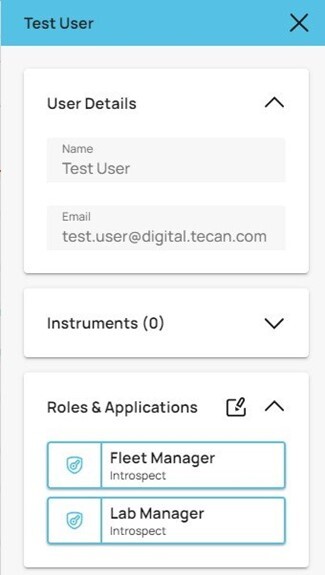
By selecting the user the details menu will be opened and allows to manage the roles and permissions.
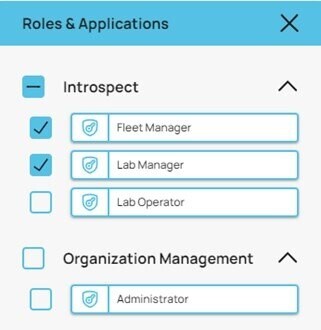
You can modify the permissions of a user by clicking on the side his  “Roles and Applications”
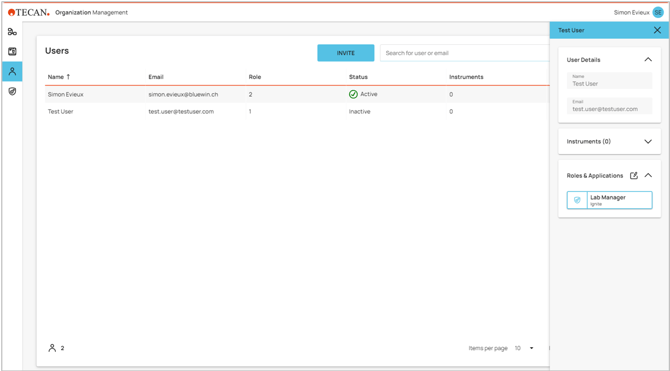
User roles and permissions
A user with the role “Administrator” can access and manage users and their role in the Organization Management application.
Details of roles and permissions are shown at the page “Roles and Permissions".
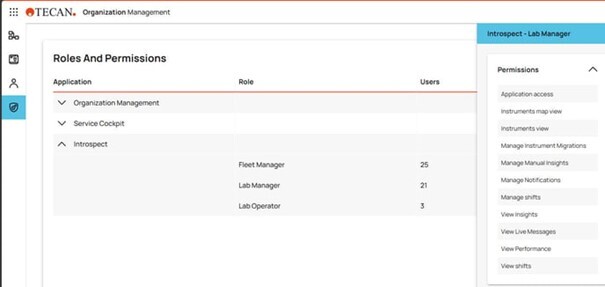
In the following table all existing user roles and their permissions are listed:
|
Permissions |
Lab Manager |
Lab Operator |
Big Screen User |
Registrator |
Administrator |
|
Introspect |
|||||
|
Application access |
+ |
+ |
+ |
|
|
|
Instrument map view |
+ |
+ |
|
|
|
|
Instruments view |
+ |
+ |
+ |
|
|
|
View Big Screen |
|
|
+ |
|
|
|
Manage Instrument Migrations |
+ |
|
|
|
|
|
Manage Manual Insights |
+ |
|
|
|
|
|
Manage Notifications |
+ |
+ |
|
|
|
|
Manage Shifts |
+ |
|
|
|
|
|
View Insights |
+ |
+ |
+ |
|
|
|
View Live Messages |
+ |
+ |
|
|
|
|
View Performance |
+ |
+ |
+ |
|
|
|
View shifts |
+ |
|
|
|
|
|
Organization Management |
|||||
|
Register instruments |
|
|
|
+ |
+ |
|
Create Users |
|
|
|
|
+ |
|
Delete Users |
|
|
|
|
+ |
|
Export Users |
|
|
|
|
+ |
|
Read Instruments |
|
|
|
|
+ |
|
Read Organization Hierarchy |
|
|
|
|
+ |
|
Read Roles |
|
|
|
|
+ |
|
Update Instrument Details |
|
|
|
|
+ |
|
Update Organization Hierarchy |
|
|
|
|
+ |
|
Update Users |
|
|
|
|
+ |
Inviting new users
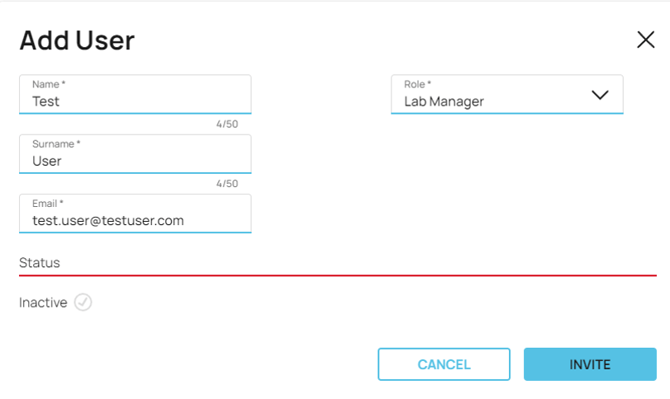
You can invite new users in your organization by clicking on the “Invite” button.
A window will appear where you can fill in the user's last name, first name, email address, and select their roles.
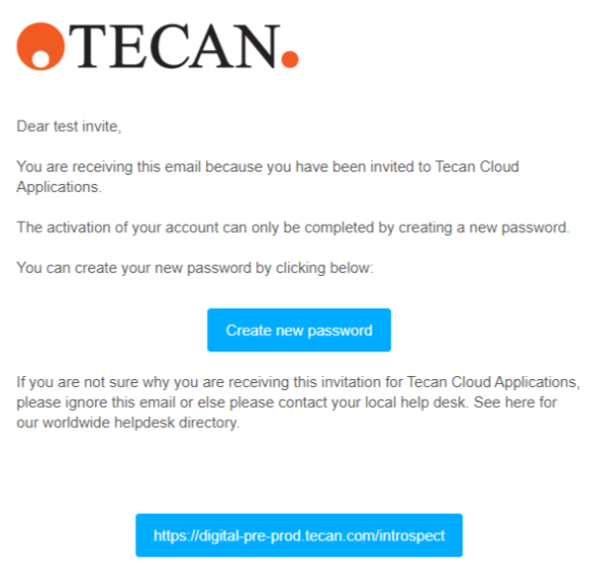
When you click "Invite," the user will receive an email with a link to verify their address.
The user will be listed as "Inactive" until they log in to Introspect for the first time. Once they log in, their status will automatically change to "Active."
Modifying existing users
You can modify the permissions of a user by clicking on the at “Roles and Applications”.
Removing users
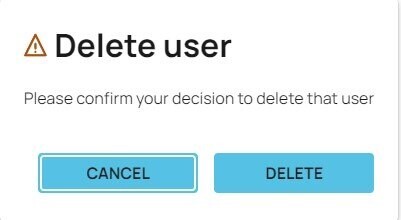
User(s) can be removed from the organization by clicking on the Recycle bin icon to the right side.
A user cannot delete themself and the last administrator cannot be removed.
Further help
For further help, please refer to our Helpdesk.
Link to Tecan Product Page
403020-006